Designing a Feature
The process of adding something to my platform
11/14/2025
I've been looking to "talk tech" more since, y'know, I'm trying to build a career as a software developer...but I've always felt a bit intimidated by it. This LinkedIn post dives into my thoughts on why, but in short: I'm scared to get something horribly wrong while posting and then never be taken seriously by folks in the industry. I realize that may be a bit silly, but the problem is that in a market full of talent, any disadvantages you create for yourself are MUCH HARDER to overcome should you "expose" yourself as "weaker". However, given that I tried to design a new feature for my sports blog this past week, I figured NOW would be a GREAT time to get technical about something, and I think it's a topic a lot of folks in software development can understand.
For those who don't know, both that site and this blog are, more or less, my own design as opposed. Yes, this does have a MASSIVE disadvantage in terms of SEO versus using something like WordPress or Substack, but I felt it would make a good "skills showcase" (in fact, I've been working on this since at least 2021). With that in mind, here's my rundown on how I added a new feature to a blog: tags.
STEP 1: What should my tags be?
My view on this was that the purpose of tags was to group content by common threads. Especially with sports, there are various "threads" that can tie multiple posts together: going to multiple games from a singular sport/league, visiting the same place for different teams/sports, and so on.
With that in mind, I came up with the following "major" points I wanted to make tags:
- Sport (what sport is being played)
- League (the league the team is in)
- Location (where they are to collect teams in similar locations)
- Level (what level the team is in its sport such as major league, minor league, or college)
I THOUGHT about doing stadium as well (since some stadiums serve multiple purposes), but at least for now, I don't see it being that important (though that may change as this blog grows over time).
The easiest thing to do for this ENTIRE project, far and away, was figure out how to insert these "tags" into the posts. Every post on my blogs has a "header" with metadata (for things like title, date, and whether or not it should appear as a "published post"), so all I had to do was add another piece to that metadata: an array with the tags as strings.
STEP 2: What should a "tag" look like on the page?
Originally, I felt that I wanted to do something kinda "fun" with the tags: make them look a bit like "buttons". My first idea was to use <span> tags, since they're more versatile than <p> tags (each p tag takes a new line on the page without specific CSS changes).
However, I ran into a somewhat unusual issue:
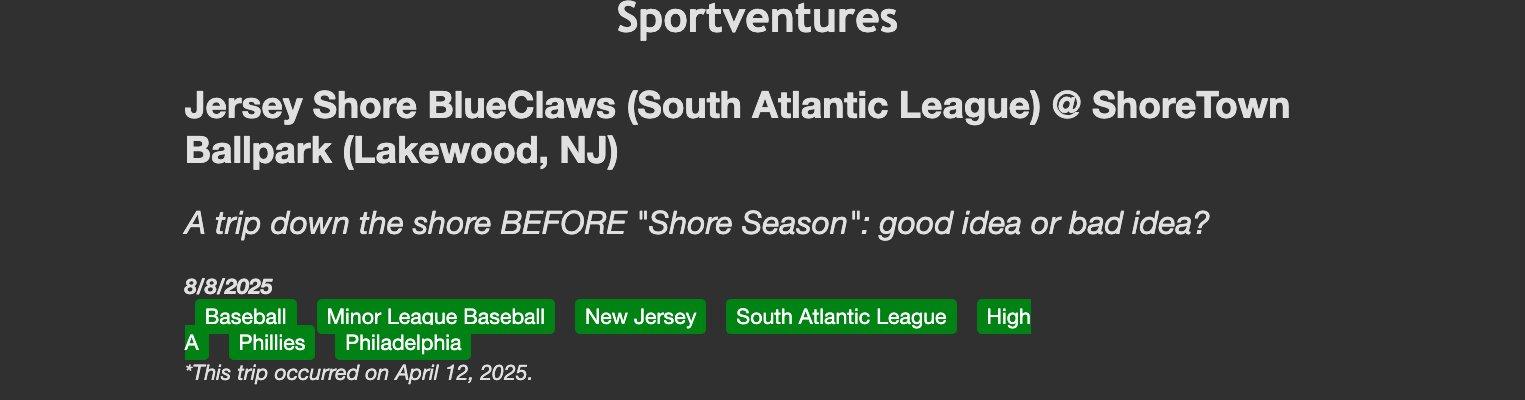
To fix this, I "leveraged" Flexbox (a CSS layout model) to ensure that this awkward line split wouldn't happen. However, it wasn't perfect for reasons I'll get into later, but I also realized that there would be a MAJOR problem with...
STEP 3: Mobile
I don't recall where I saw it, but there's a statistic out there that claims that people use mobile devices to access the internet FAR MORE than computers/laptops - and it's pretty easy to see how that can be true. Think about it: If you're in a car/train/waiting room/restaurant, what device are you using to access your internet content?
Your phone!
However, it does create an important issue for developers: if you design a website for laptops and completely forget about mobile, it will be an AWFUL experience for much of your mobile-heavy userbase.
For the tags, using Flexbox them would cause them to remain horizontal no matter what the screen size was - a MASSIVE issue for mobile devices. This would add a TON of horizontal scroll to the page, and you'd rather not have your reader accidentally sideswipe while reading and then get horribly lost.
My original idea was to have the tags near the top of the page and then simply not use Flexbox for mobile (i.e. make tags "vertically stacked"), but this creates a whole new problem: page flow!
When the tags are viewed on a larger screen (i.e. a laptop/standard computer monitor), there's no real issues: they can be viewed as a single line, so to speak. However, mobile is a different story. As each tag has its own line now (which, IIRC, is called "inline"), there's a "block" between the title of the post and its content, and I feel like this looks worse - and can lead to mis-clicks dragging the reader away from the content. Because I can't really use Flexbox for mobile, I have to figure out another solution to have the tags without them being disruptive to the reader.
However, this dilemma made me do one other thing I feel like a lot of blogging platforms do: move the tags to the bottom of the page! This way, the tags do not interrupt the "flow" of content in any way, shape, or form.
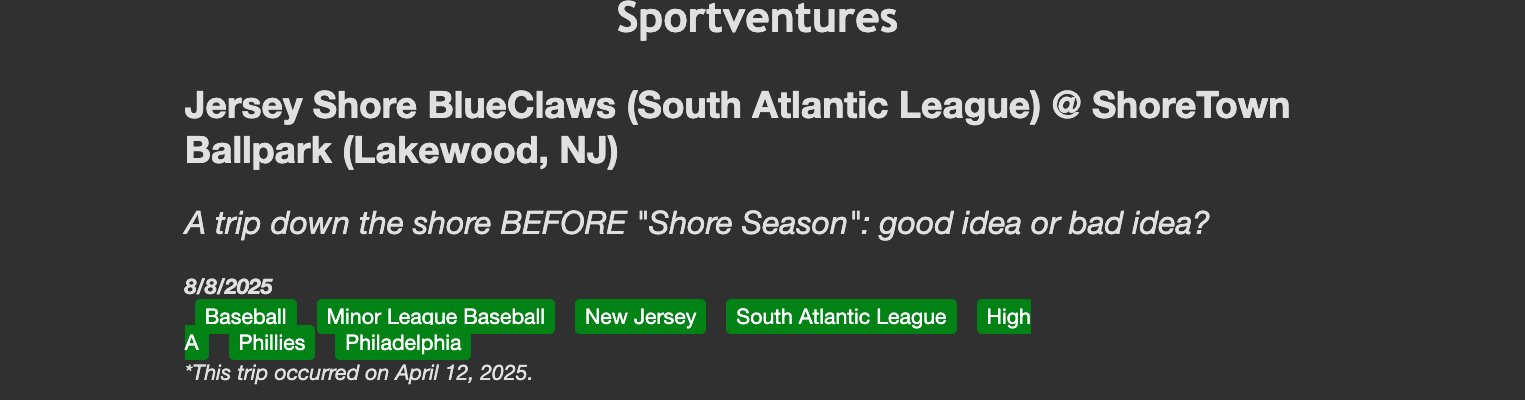
I also felt that, in order to stay "consistent", the tags needed a cleaner design. I mentioned that the Flexbox solution wasn't perfect, and that was because it would, more often than not, take tags that were multiple words long and put each word on its own line. Since more tags are one word rather than three, it ended up looking making the buttons look very goofy:


Therefore, I ended up using a "plain text" design, where the tags are just plain text separated by a | separator. I will admit that the HTML file for tags looks a little goofy, but it's the only way I found to get the look I'm aiming for, and I think it's more "in line" with most modern blogging platforms1.
STEP 4: How do you display the posts?
Now that we've made a way to display the tags that works for just about everyone (I hope), the next part is where things get much MORE technical.
I think the way to start this section is to talk about what the actual goal is: a page to display all posts that share a common tag. To start, here's the flow I'm trying to achieve:
- User clicks on a tag
- User is taken to a new page
- New page has all posts that share the tag the user clicked on from the prior post
The first step is almost inherently obvious: <a> tags! However, since I'm using NextJS for this blog, I figured that <Link> would work better.
For the new page, the layout was, thankfully, already done: back when I originally designed this site, I made a layout for an "archives" page using CSS Grid. Since I felt that this would work fine for a smaller list, I felt no reason to make any major changes. All I had to do was create a new page for tagged posts and then adjust it to tagged posts.
...But here's where things get a little tricky, and OF COURSE it's the final step of this process.
In order for the page of tagged posts to "work" properly, there needs to be a way to "send" the tag to the new page; not only that, there should also be a way to have the URL include the tag.
I wasn't sure where exactly to start with this one or how to go about it, but then I realized something:
This is also something that has been "solved" on this blog before...and by this blog, I mean the one you are currently reading.
The fact that you are currently reading this post, which exists on its own page in this blog, is proof positive that there's a system for making these types of links work (i.e. if you look at this page's URL, everything after .app/). All I have to do now is to figure out how I did it back in 2021, and then rework that for the tags!
...Of course, that's easier said than done.
...Like, MUCH easier said than done.
I spent two days working on the tagged page, but I couldn't seem to get it to work. This is because not only do you need to send the tag to the page, you also have to send the ENTIRE POST LIST to be filtered - and I'm not quite sure how to do that right now.
In fact...that's where this feature currently stands. There's a lot of things in Next's routers that I'm still trying to figure out for this, but I felt I needed to take some time to focus on other things (and also to avoid massive merge conflicts, as I have new content coming up VERY SOON). HOWEVER...I did implement ONE feature of this system I thought would take a bit more time done instead: filtering.
I have every intention of continuing to go to sporting events and writing about them, and at some point, that's going to make my blog rather unwieldly for my main "archive" page - in fact, it kinda already is (as Next keeps complaining about how many items are in my posts array). Being able to filter the archives by some factor helps users immensely if they're looking to see just my posts on a specific sport/league.
I thought that THIS would take a while, but it's just a simple useState/useEffect case (though it also involves a Set created from all the tags of all the posts). There is a little more to this that I'd like to implement in the near future, but I think that will have to wait until the tag page is ready to go.
This post is getting rather long (my editor tells me this is line 101), so I think I'll end this here. I will also mention that I got a custom domain for the blog as well, but that's a lot LESS interesting to talk about IMO (though as of this writing, the secure version isn't available...).
P.S: I'm not sure if tags (or a custom domain) are going to be coming to THIS blog. Not only do I think there's not enough content (yet) to justify it, I expect a much wider range of discussion points, so the "filter pages" would all be one or two posts - something I don't think is worth the time. Of course, should the need arise, it's a SUPER easy addon.
Footnotes
-
As an aside, I'm also fully aware that the images on this page are hilariously awful to look at on mobile... ↩